All features

Workspace

Keep your code, your Claude sessions and your tasks in one window

When Claude is working on several branches at once, the work ends up spread across terminal windows, a task tracker in your browser and a separate git app. It’s easy to lose track of what’s happening where.

Mooring puts it all side by side. Your task list, Up Next, sits right next to the code, and Coxswain, the assistant built into Mooring, helps turn rough notes into clear tasks Claude can start on.
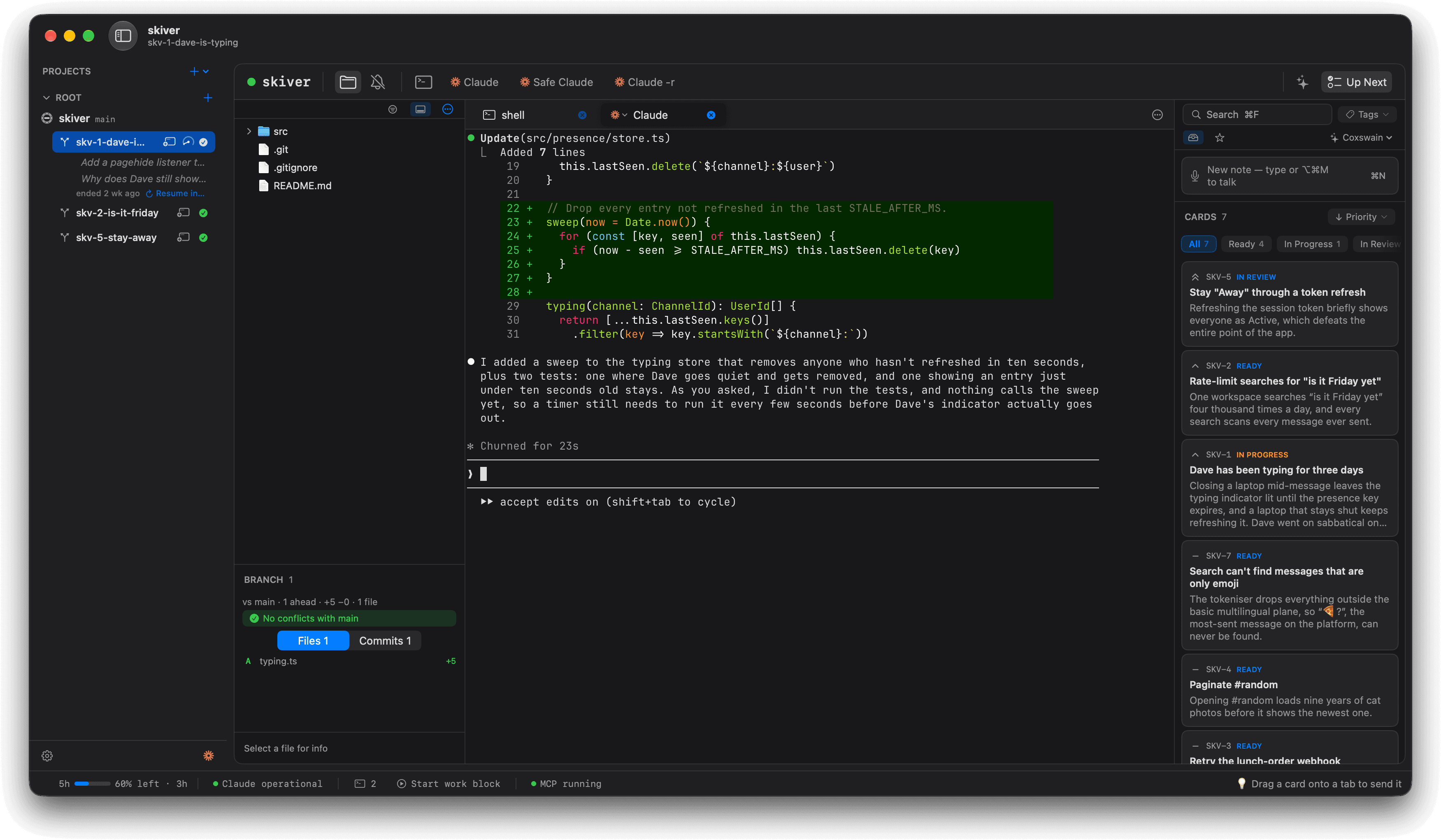
Mooring’s main window. The sidebar lists the skiver project and its three worktrees, with recent questions asked of Claude under the first. The middle shows that worktree’s files, a branch review reading “No conflicts with main,” and a Claude tab where Claude has just added a sweep that clears stale typing indicators. On the right, the backlog lists seven cards, each with its key, status in colour, priority, title and description — among them “Dave has been typing for three days” and “Paginate #random.”

See everything at once.

Projects on the left, code in the middle, and Up Next on the right.
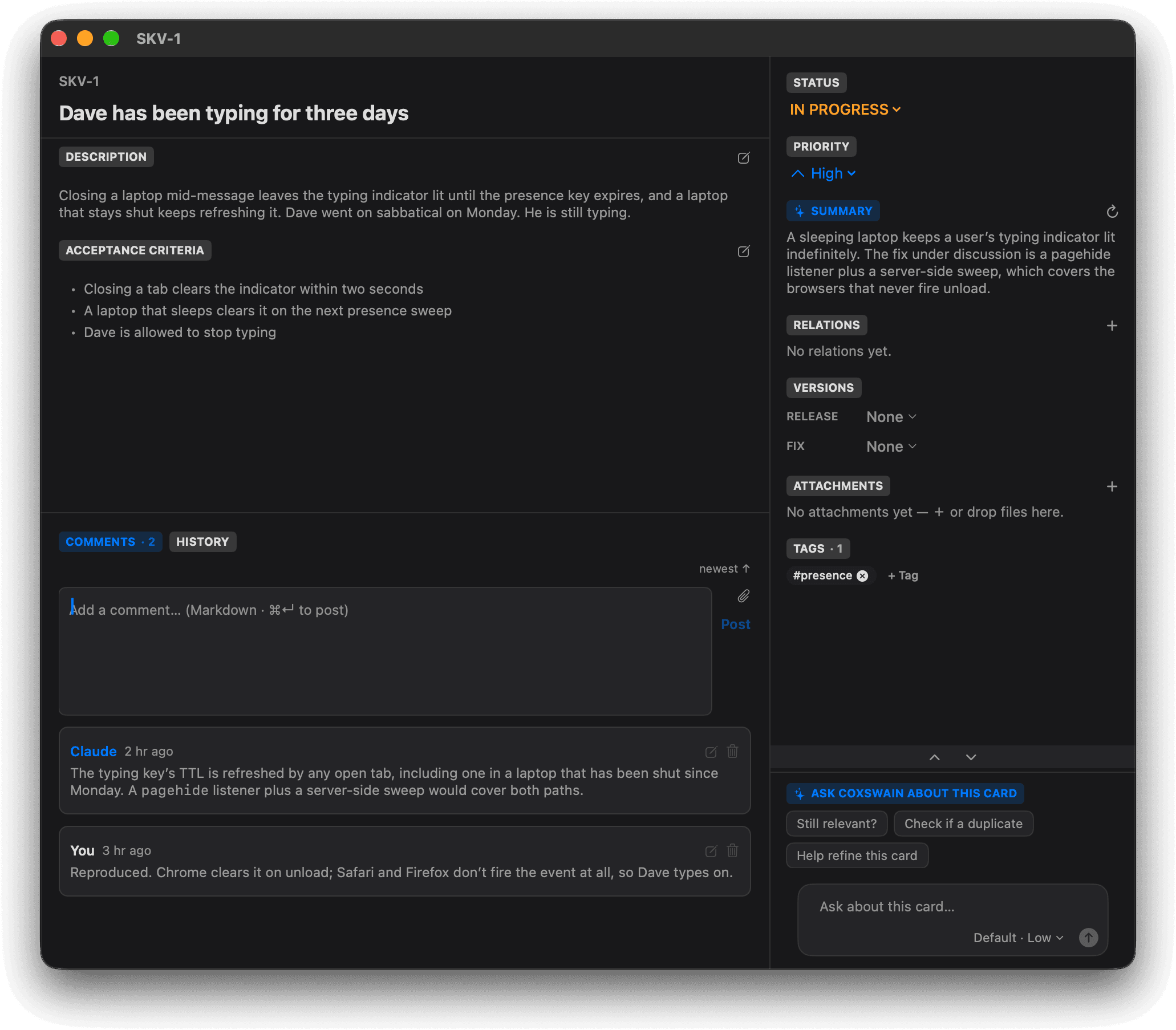
A Mooring card window for SKV-1, “Dave has been typing for three days.” The left side shows the description, three acceptance criteria and a comment thread in which Claude explains the cause. The right-hand rail shows the status (In Progress), priority (High), an AI summary of the card, tags, and an Ask Coxswain section with suggested questions.

Open any task in its own window.

The description, what counts as done, and the conversation, all on one page.
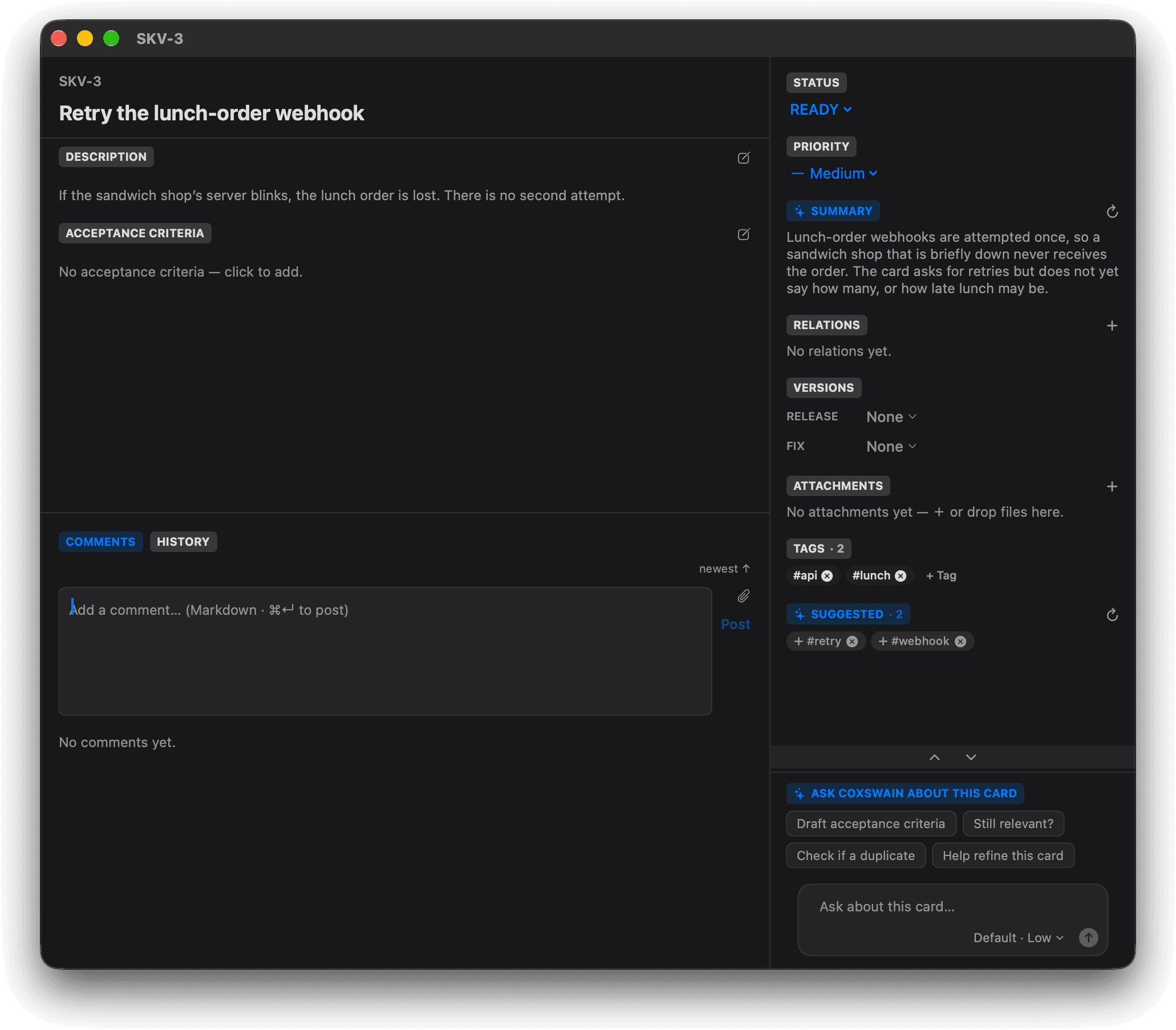
Three steps of the card window for SKV-3, “Retry the lunch-order webhook.” First the card's description is a single line. Then Coxswain's pane proposes a fuller description, the old one greyed out above the new one, with Apply, Edit and Discard below. Then Apply has been clicked and the card's description reads the fuller version.

Make a task clearer.

Coxswain writes a better version next to yours, and nothing changes until you apply it.
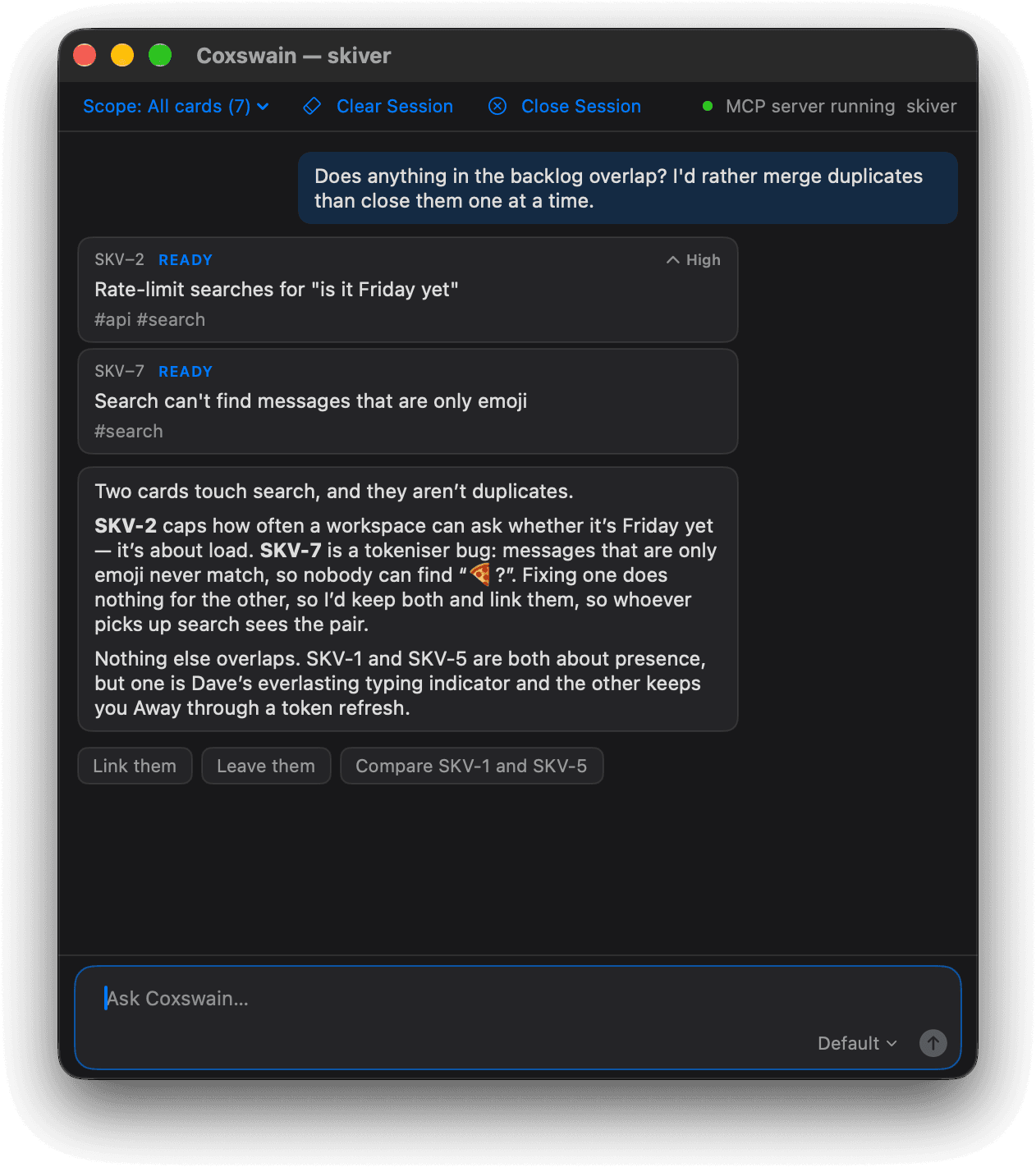
The Coxswain window for the skiver project. Asked whether anything in the backlog overlaps, Coxswain shows two cards as clickable cards: SKV-2, “Rate-limit searches for ‘is it Friday yet’,” and SKV-7, “Search can’t find messages that are only emoji.” It explains that both touch search but are different work, suggests linking rather than merging them, and offers one-click replies: Link them, Leave them, and Compare SKV-1 and SKV-5.

Ask about every task at once.

Chat with Coxswain about all of your tasks, and it spots overlaps and links related work.

Shown with Skiver, a made-up team chat app for people avoiding work.